Ameritas Dental Enrollment: Every Screen, Start to Finish
This is the full application, not just the plan picker. Every screen is shown in order, with private details greyed out, so you know what each step asks for before you start.
 New video arrives Oct 31. See plans now →
Step by step
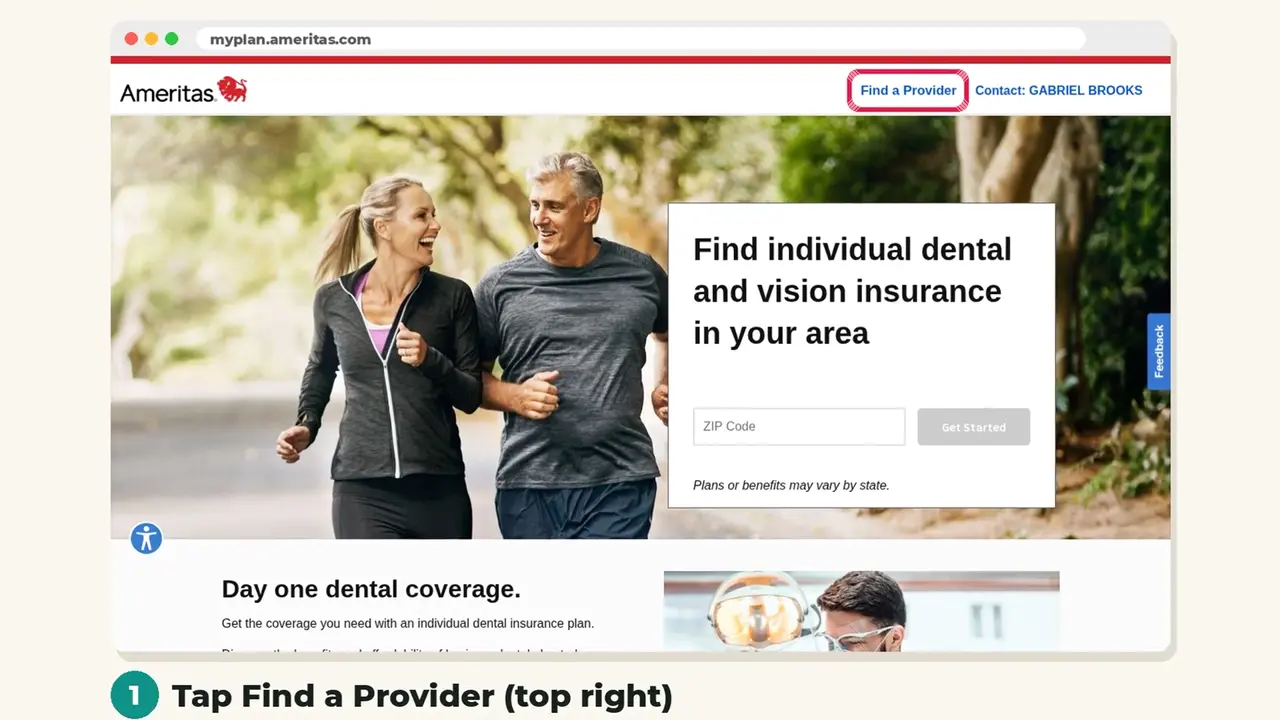
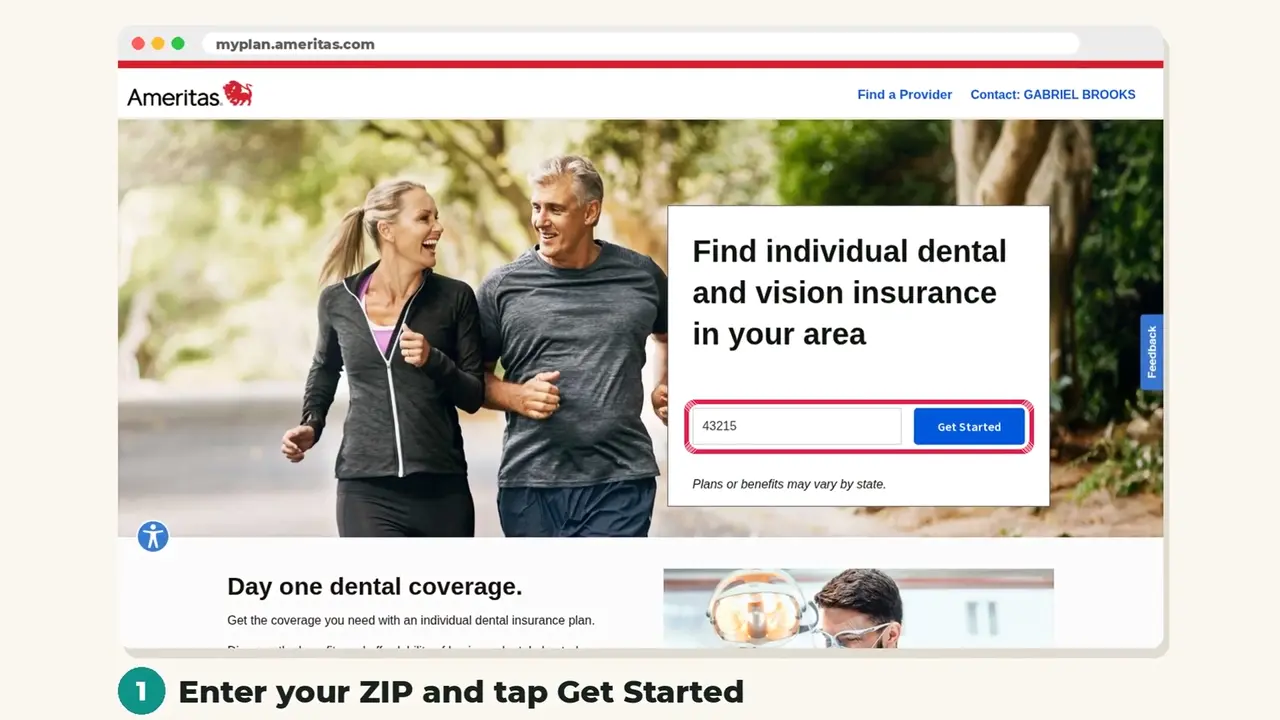
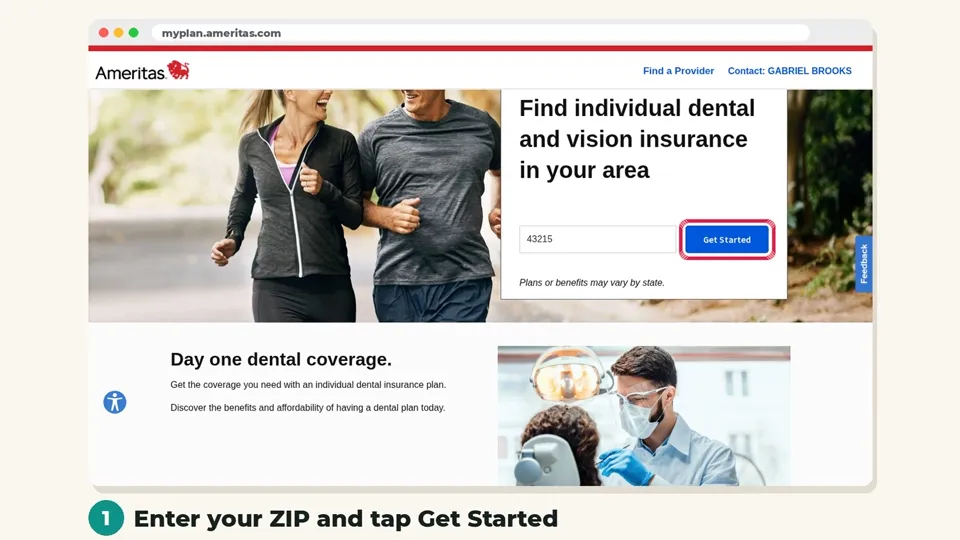
Step 1: Enter your ZIP code
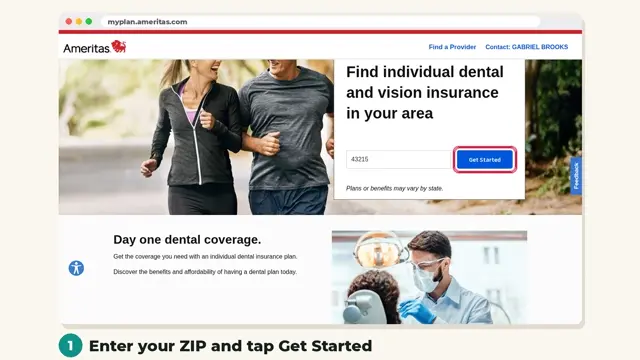
Open the enrollment link, enter your ZIP code and tap Get Started.
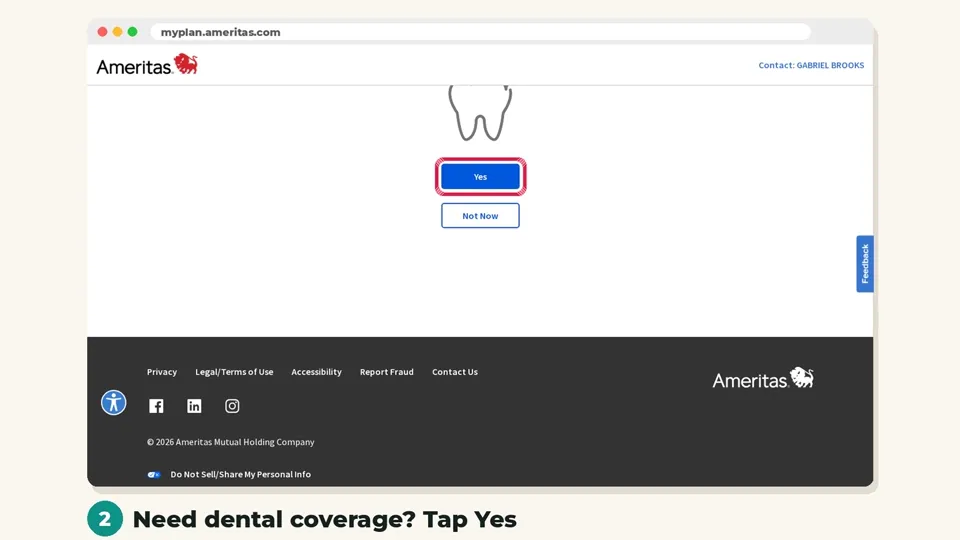
Step 2: Choose dental coverage
When asked if you need dental coverage, tap Yes.
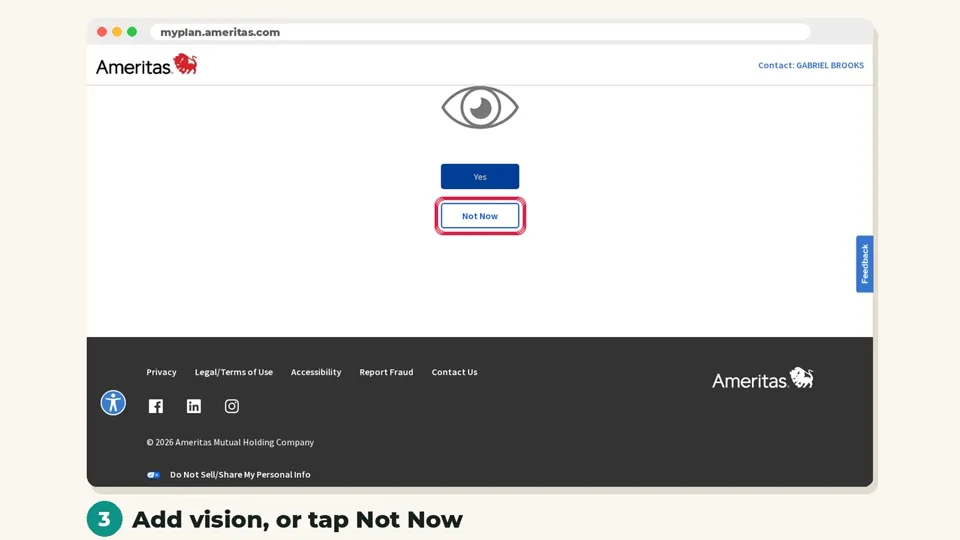
Step 3: Add vision or skip it
Add vision if you want it, or tap Not Now.
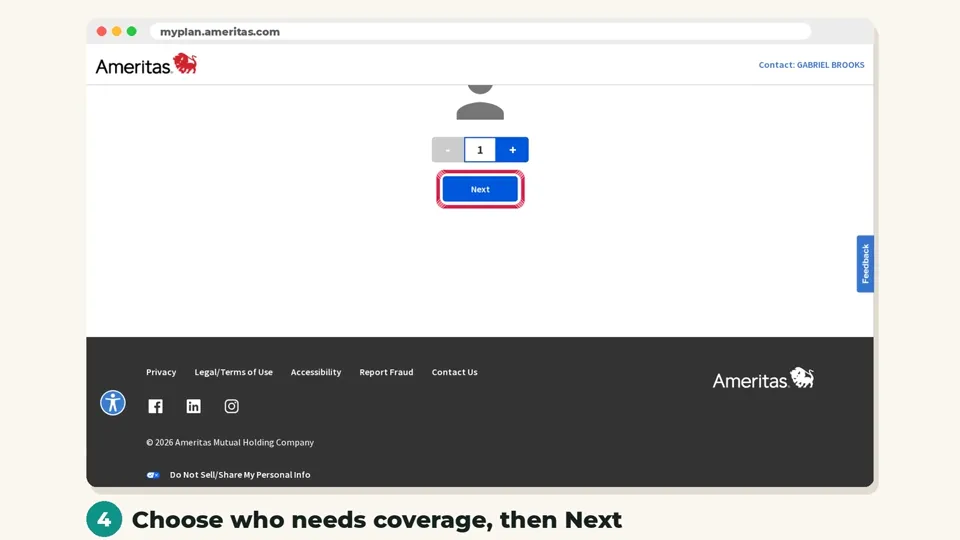
Step 4: Choose who needs coverage
Pick you, a spouse or children, then tap Next.
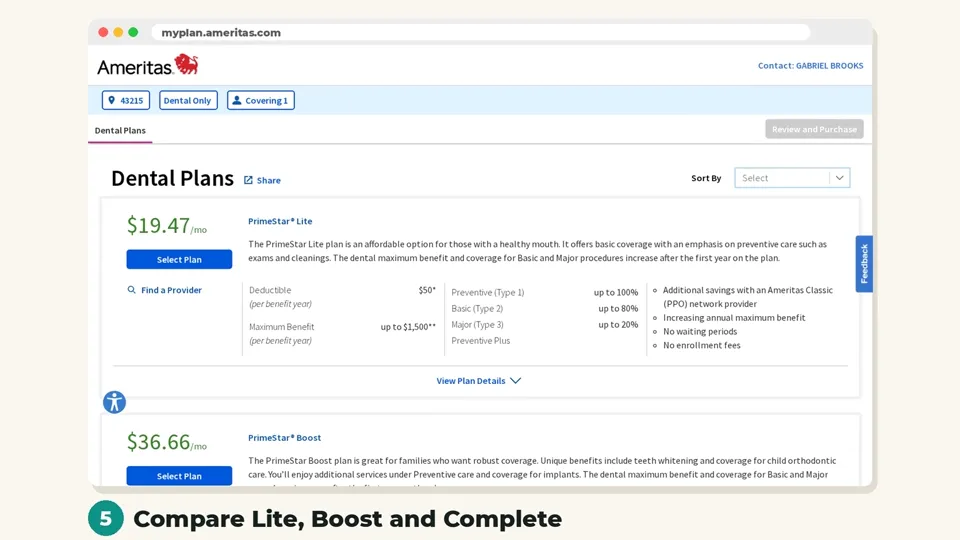
Step 5: Compare the plans
Compare Lite, Boost and Complete, then tap Select Plan and Review and Purchase.
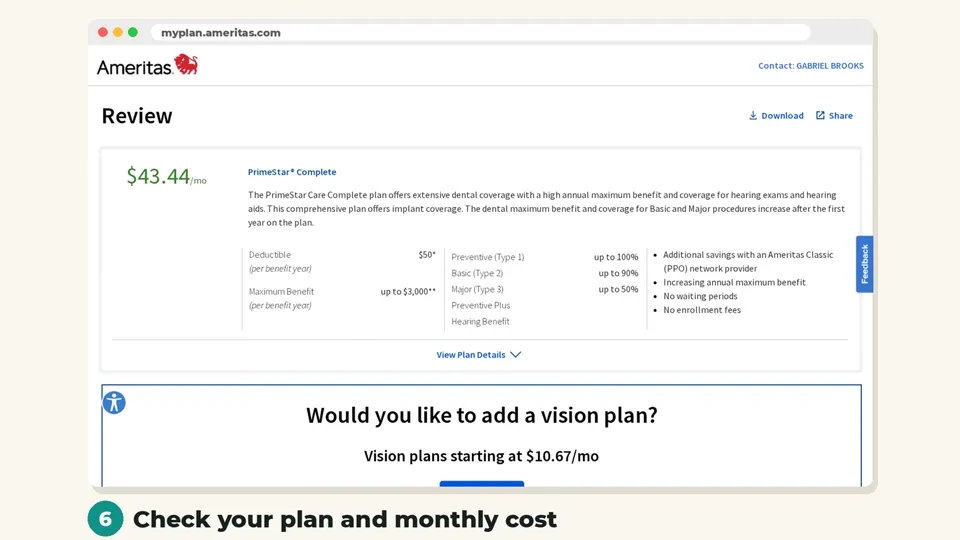
Step 6: Check your plan and price
Confirm the plan and monthly cost, then tap Enroll Now.
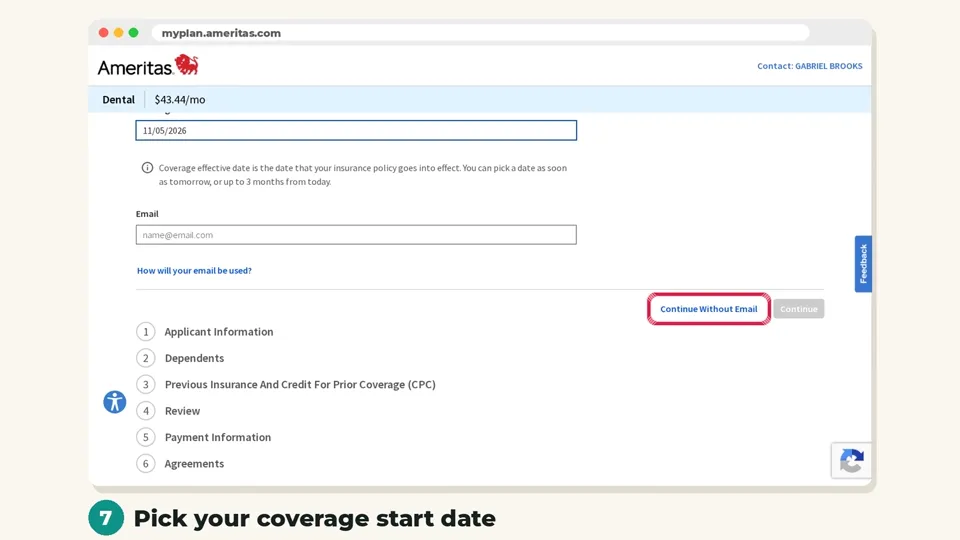
Step 7: Pick your start date
Choose the date you want coverage to begin.
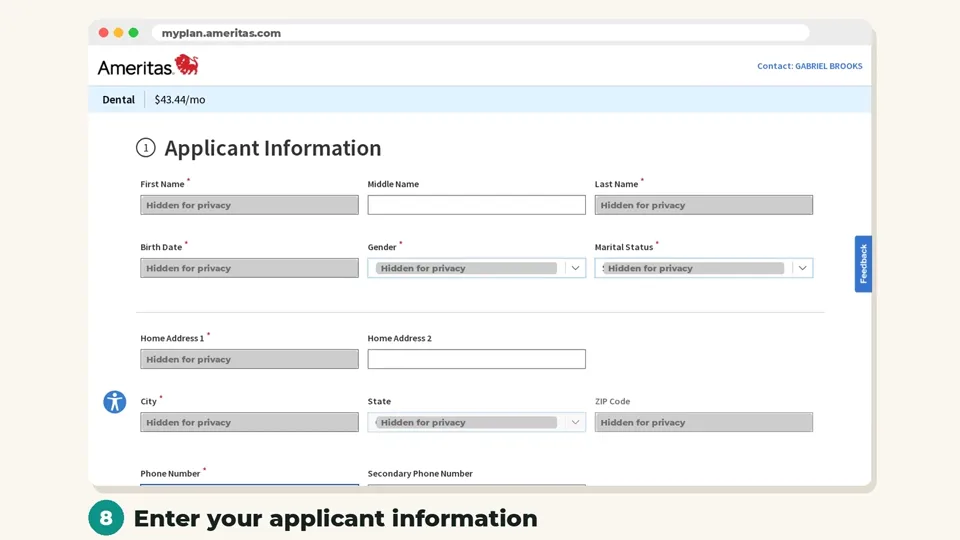
Step 8: Enter applicant information
Fill in your name, date of birth, address and phone, then tap Continue.
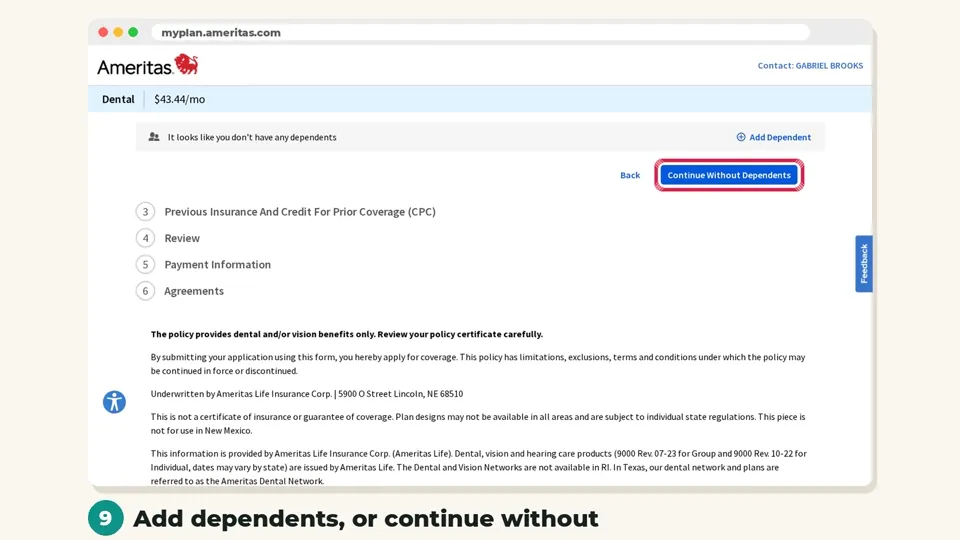
Step 9: Add dependents
Add anyone else you want covered, or continue without dependents.
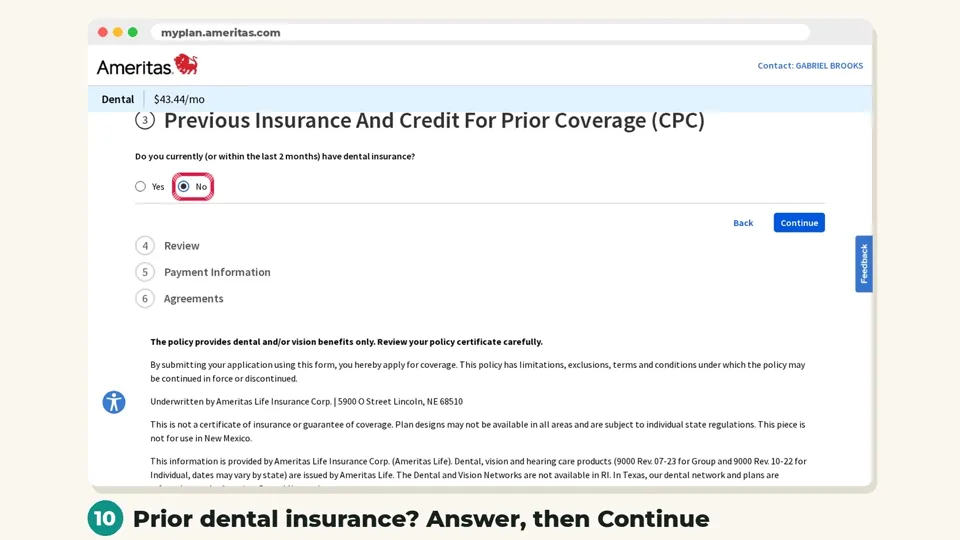
Step 10: Answer the prior coverage question
Say whether you had dental insurance in the last two months, then tap Continue.
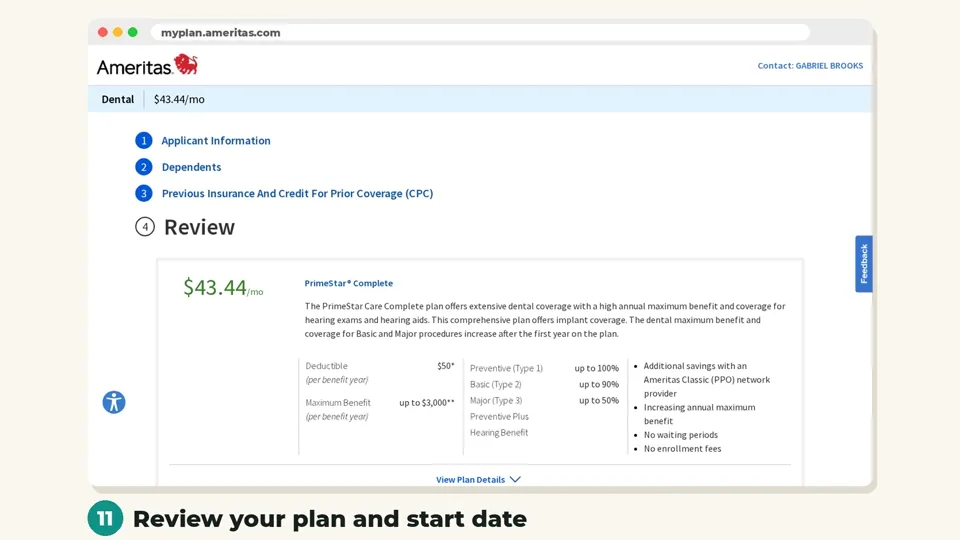
Step 11: Review your application
Check the plan, monthly cost and start date, then tap Continue.
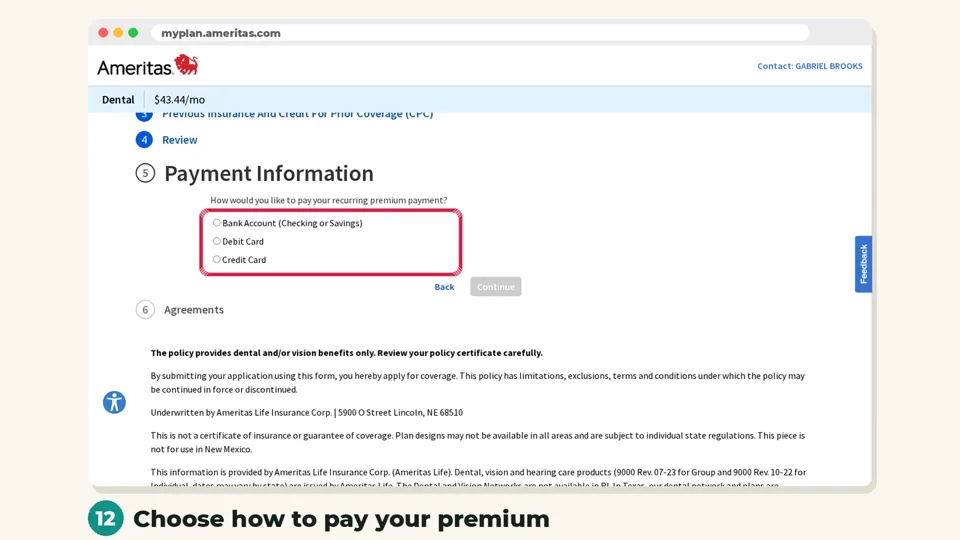
Step 12: Choose how to pay
Pick bank account, debit card or credit card for your monthly premium.
Step 13: Accept and submit
Read and accept the agreements, then submit. Coverage starts on the date you picked.

No waiting periods on PrimeStar plans, so coverage can start the day after you enroll. Screens may change slightly over time. Plans, costs and availability vary by state.